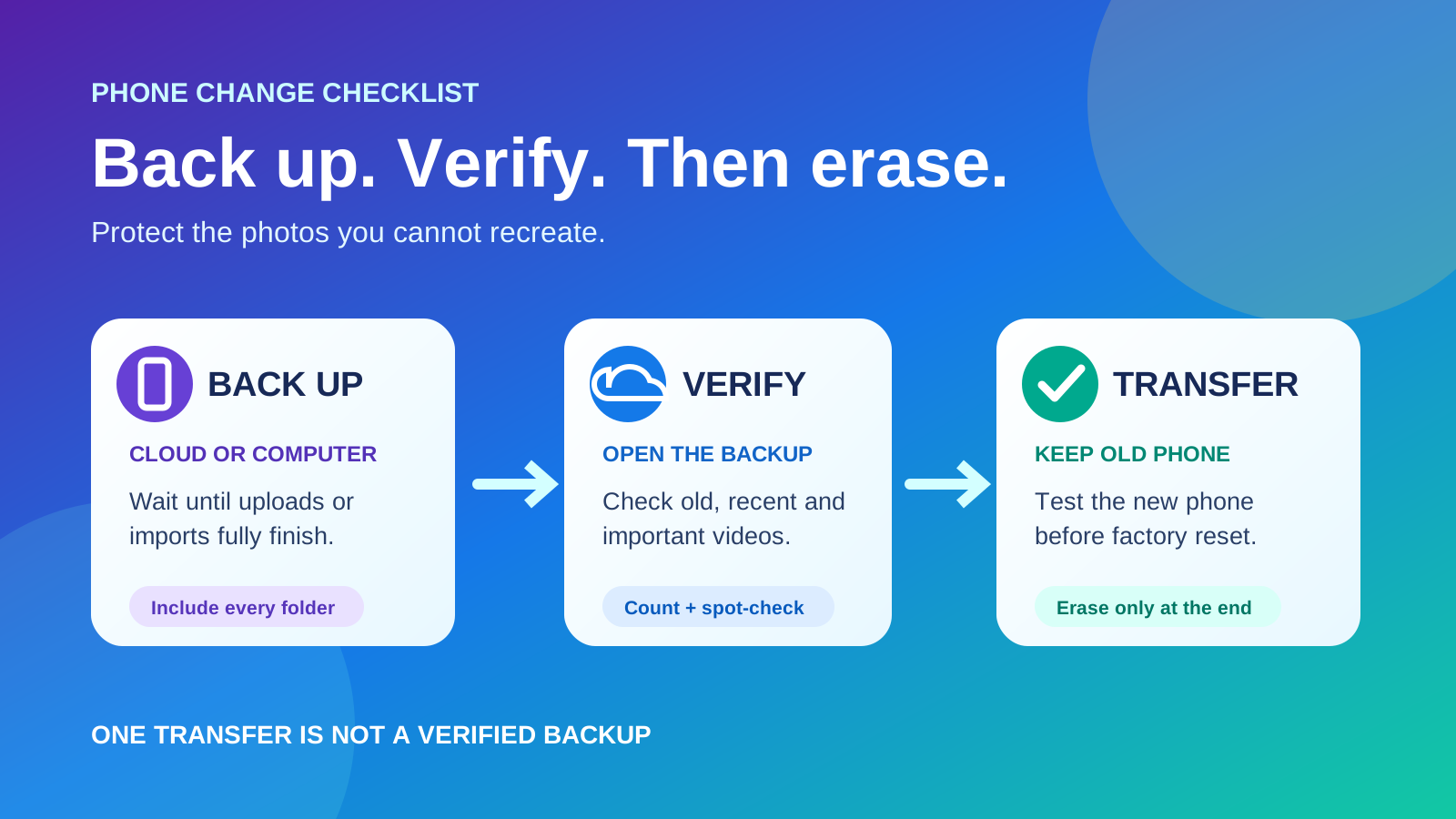
The safest order
- Charge the old phone, connect it to reliable Wi-Fi and confirm you know its unlock code and account password.
- Complete a cloud backup or copy photos and videos to a computer or drive.
- Open the backup from another device and spot-check old, recent and important files.
- Transfer to the new phone and verify again.
- Erase the old phone only after several checks and any required account transfers.
One copy is fragile
For irreplaceable photos, keep at least two copies in different places during the phone change, such as cloud storage plus a computer or external drive.
Choose a backup method
| Method | Advantage | What to check |
|---|---|---|
| Cloud photo library | Uploads automatically and can appear on the new phone after sign-in. | Upload status, storage capacity, correct account and included folders. |
| Whole-phone backup | Helps restore apps, settings and supported data during setup. | Backup date, account credentials and what is not included. |
| Computer or external-drive copy | Creates an independent copy you control. | Open several files after copying and preserve folder structure. |
| Direct phone-to-phone transfer | Convenient during new-phone setup. | Keep the old phone untouched until the new device is fully checked. |
Android: back up before switching
Google's Android help recommends charging both devices, signing in to the Google Account, backing up data and ensuring Wi-Fi access before switching. Android's device backup can include supported apps, settings and other data, while photo and video backup is commonly handled through Google Photos or another chosen cloud service.
Check the photo app's backup status and account. Review device folders such as screenshots, downloads, messaging-app media and camera folders because not every folder is necessarily included automatically. Google's guidance notes that a device backup can take up to 24 hours, so do not begin a trade-in at the last minute.
iPhone: back up before switching
Apple offers Quick Start, iCloud transfer, and computer backups using Finder, Apple Devices or iTunes. Apple says users buying a new iPhone or iPad may be eligible for temporary iCloud storage when existing storage is insufficient. Keep both devices connected to power and Wi-Fi during transfer and allow time for cloud photos and apps to finish downloading.
Create an independent computer copy
For extra protection, import photos and videos to a computer before erasing the phone. Microsoft documents using a data-capable USB cable, unlocking the phone, opening the Windows Photos app, and selecting Import. After copying, open random photos and videos from several dates to make sure the files are usable.
Verification checklist
- Open the cloud library or backup from another device or browser.
- Check the newest photos taken today and older photos from several years ago.
- Play several large videos with sound.
- Check screenshots, downloads, edited photos, favourites and hidden/locked folders where appropriate.
- Compare approximate photo/video counts and storage sizes.
- Confirm the new phone can access accounts, passkeys, authenticator apps and messaging history before reset.
Before erasing or trading in the old phone
- Use the new phone normally for at least a short verification period.
- Confirm calls, messages, photos, contacts and important apps work.
- Transfer or recover authenticator apps and eSIM/mobile service.
- Remove memory cards and physical SIMs if applicable.
- Sign out or follow the manufacturer's official reset/trade-in steps.
- Factory-reset only after the backups and new phone have been checked.